serial
The serial module config options are: Enabled, Echo, Mode, Receive GPIO, Transmit GPIO, Baud Rate, Timeout, and Override Console Serial Port. Serial Module config uses an admin message sending a ConfigModule.Serial protobuf.
This is an interface to talk to and control your Meshtastic device over a serial port. The module can be set to different modes, each fulfilling a different use-case.
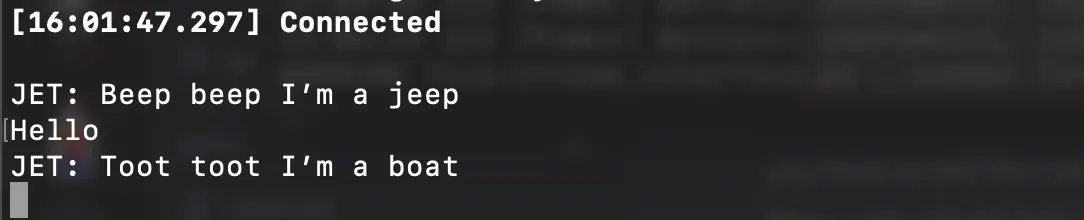
Serial Module Config Values
Enabled
Enables the serial module.
Echo
If set, any packets you send will be echoed back to your device.
Mode
Defaults to 'Simple'.
Available Values:
DEFAULTequalsSIMPLE.SIMPLEoperates as a dumb UART tunnel. What goes in will come out, requires a channel named 'serial'.PROTOexposes the Protobuf Client API on this serial port. You can use this to connect from another device, see the Arduino client library and the API Reference.TEXTMSGwill allow you to send a string over the serial port to the device, which will be broadcasted as a text message to the default channel. Any text message received from the mesh will be sent to the serial port as follows:<Short Name>: <text>.NMEAwill output a NMEA 0183 Data stream containing the internal GPS or fixed position and other node locations as Waypoints (WPL).CALTOPOwill output NMEA 0183 Waypoints (WPL) every 10 seconds for all valid node locations, to be consumed by CalTopo / SARTopo.WS85will parse and compute wind speed data received over serial from the Ecowitt WS85. Transmits values via telemetry packet every 5 minutes. Modification of the WS85 weather sensor is required (https://hackaday.io/project/196990-meshtastic-ultrasonic-anemometer-wx-station). If option is not available in app then enable with cli command "meshtastic --set serial.mode 6"
:::tip
PROTO mode will show no obvious output when passively observed by a serial monitor. When testing, consider using the Python CLI with the --listen option, to view the stream of protobufs.
:::
Receive GPIO Pin
Set the GPIO pin to the RXD pin you have set up.
:::tip
With the RAK4631 on the RAK19007 and some versions of the RAK19003 baseboards, the default pins are TXD1 (16) and RXD1 (15). For this device, setting GPS Mode to Not_Present is necessary. For other versions of the RAK19003 baseboard, the pins TXD0 (20) and RXD0 (19) are accessible.
:::
Transmit GPIO Pin
Set the GPIO pin to the TXD pin you have set up.
:::tip Connect the TX pin to the other device's RX pin, and vice versa. Connect their grounds to each other (not necessary if they're both plugged into the same USB power source.) :::
Baud Rate
The serial baud rate.
Timeout
The amount of time to wait before we consider your packet as "done".
Override Console Serial Port
If set to true, this will allow Serial Module to control (set baud rate) and use the primary USB serial bus for output. This is only useful for NMEA and CalTopo modes and may behave strangely or not work at all in other modes. Setting TX/RX pins in the Serial Module config will cause this setting to be ignored.
:::tip Once module settings are changed, a reset is required for them to take effect. :::
Serial Module Config Client Availability
      <Icon icon="mdi:android" height="1.5rem" style={{ marginRight: "0.25rem" }} /> Android
    </>
  ),
  value: "android",
},
{
  label: (
    <>
      <Icon icon="mdi:apple" height="1.5rem" style={{ marginRight: "0.25rem" }} /> Apple
    </>
  ),
  value: "apple",
},
{
  label: (
    <>
      <Icon icon="mdi:terminal" height="1.5rem" style={{ marginRight: "0.25rem" }} /> CLI
    </>
  ),
  value: "cli",
},
{
  label: (
    <>
      <Icon icon="mdi:internet" height="1.5rem" style={{ marginRight: "0.25rem" }} /> Web
    </>
  ),
  value: "web",
},
]}>
Android
:::info
Serial Module Config options are available for Android.
- Open the Meshtastic App
- Navigate to: Vertical Ellipsis (3 dots top right) > Radio Configuration > Serial
:::
Apple
:::info All serial module config options are available on iOS, iPadOS and macOS at Settings > Module Configuration > Serial. :::
CLI
:::info
All serial module config options are available in the python CLI. Example commands are below:
:::
| Setting | Acceptable Values | Default |
|---|---|---|
| serial.enabled | true, false |
false |
| serial.echo | true, false |
false |
| serial.mode | DEFAULT SIMPLE PROTO TEXTMSG, NMEA, CALTOPO |
DEFAULT |
| serial.rxd | GPIO Pin Number 1-39 | Default of 0 is Unset |
| serial.txd | GPIO Pin Number 1-33 | Default of 0 is Unset |
| serial.baud | BAUD_DEFAULT BAUD_110 BAUD_300 BAUD_600 BAUD_1200 BAUD_2400 BAUD_4800 BAUD_9600 BAUD_19200 BAUD_38400 BAUD_57600 BAUD_115200 BAUD_230400 BAUD_460800 BAUD_576000 BAUD_921600 |
BAUD_DEFAULT (38400) |
| serial.timeout | integer (milli seconds) |
Default of 0 corresponds to 250 ms |
| serial.override_console_serial_port | true, false |
false |
:::tip
Because the device will reboot after each command is sent via CLI, it is recommended when setting multiple values in a config section that commands be chained together as one.
```shell title="Example:" meshtastic --set serial.enabled true --set serial.echo true
:::

```shell title="Enable / Disable Module"
meshtastic --set serial.enabled true
meshtastic --set serial.enabled false
```shell title="Enable / Disable Echo" meshtastic --set serial.echo true meshtastic --set serial.echo false
```shell title="Set Mode"
meshtastic --set serial.mode DEFAULT
meshtastic --set serial.mode PROTO
```shell title="Set RXD to GPIO pin number 7" meshtastic --set serial.rxd 7
```shell title="Set TXD to GPIO pin number 28"
meshtastic --set serial.txd 28
```shell title="Set Baud Rate" meshtastic --set serial.baud BAUD_DEFAULT meshtastic --set serial.baud BAUD_576000
```shell title="Set Timeout to 15 milli seconds"
meshtastic --set serial.timeout 15
Web
:::info All serial module config options are available in the Web UI. :::
:::warning GPIO access is fundamentally dangerous because invalid options can physically damage or destroy your hardware. Ensure that you fully understand the schematic for your particular device before trying this as we do not offer a warranty. Use at your own risk.
This module requires attaching a peripheral accessory to your device. It will not work without one. :::
Examples
Default is to use RX GPIO 16 and TX GPIO 17.
Basic Usage
- Enable the module by setting
serial.enabledto1. - Set the pins (
serial.rxd/serial.txd) for your preferred RX and TX GPIO pins. On tbeam boards it is recommended to use: - RXD 13
- TXD 14
- Set
serial.timeoutto the amount of time to wait before we consider your packet as "done". - (Optional) set serial.mode to
TEXTMSGif you want to send messages to/from the general text message channel. For more specific control, use thePROTOmode, e.g. in combination with the Arduino client library. - Connect to your device over the serial interface at
38400 8N1.
With tio – tio -e -b 38400 -f none /dev/myserialport
- Send a packet up to 237 bytes in length. This will get broadcasted over the default channel.
- (Optional) Set
serial.echoto1and any message you send out will be echoed back to your device.
Interfacing PIR Sensor With External Microcontroller
The following are examples of using either a Raspberry Pi Pico or Arduino Mini Pro connected to a PIR sensor to detect motion. When motion is detected, a message is sent via serial to the T-Beam. The T-Beam transmits the message as text over the default channel by utilizing the serial module in TXTMSG mode.
Meshtastic Software Configuration
- Serial module enabled, mode: TEXTMSG
- GPIO Pins (For T-Beam) RX 13, TX 14
- 38400 Baud
Raspberry Pi Pico BOM
- A Raspberry Pi Pico running CircuitPython
- T-Beam V1.1 running Meshtastic
- PIR Sensor (Adafruit Breadboard Model)
Raspberry Pi Pico Wiring
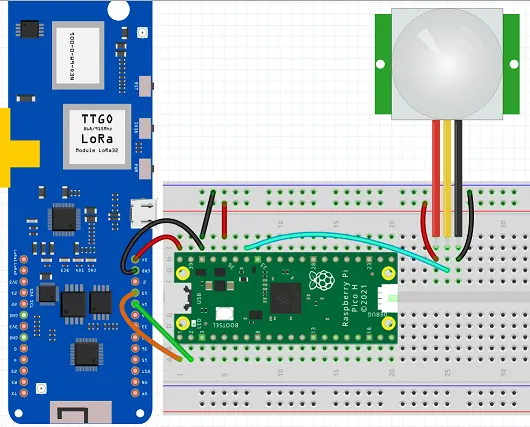
- TX pin 14 on the T-Beam to RX pin 2 on the Pico
- RX pin 13 on the T-Beam to TX pin 1 on the Pico
- PIR sensor Vcc and GND pins to Vcc/GND on breadboard respectively
- PIR sensor trigger line to Pico GPIO28 (Pico pin 34)
- GND pin on T-Beam to GND pin 38 on the Pico
- GND pin 38 on the Pico to breadboard ground rail
- 3V3 pin 36 on the Pico to the breadboard positive voltage rail
- Optional, to power the Pico off of the T-Beam instead of USB:
- Connect 5V pin on T-Beam to Vbus pin 40 on the Pico
Circuit Python Code
# Setup PIR sensor on GP28
pir = digitalio.DigitalInOut(board.GP28)
pir.direction = digitalio.Direction.INPUT

# Setup serial UART connection TX/RX on (GP0/GP1)
uart = busio.UART(board.GP0, board.GP1, baudrate=38400, timeout=0)

while True:
    if(pir.value == True):
        uart.write(bytes("Motion Detected", "ascii"))
        time.sleep(30)
    time.sleep(0.5)
Arduino Mini Pro BOM
- An Arduino Mini Pro with example sketch from below uploaded to it.
- T-Beam V1.1 running Meshtastic
- PIR Sensor (Adafruit Breadboard Model)
Arduino Mini Pro Wiring

- T-BEAM RX PIN 13 to TX PIN on the ARDUINO MINI
- T-BEAM TX PIN 14 to RX PINon the ARDUINO MINI
- T-BEAM PIN 3.3V to 3.3V PIN on the ARDUINO MINI
- T-BEAM PIN GND to GND PIN on the ARDUINO MINI
- ARDUINO MINI PIN 2 to OUT PIN on the PIR SENSOR
- ARDUINO MINI PIN 3.3V to 3.3V on the PIR SENSOR
- ARDUINO MINI PIN GND to GND PIN on the PIR SENSOR
Arduino Mini Pro Code
int LED = 13; // the pin to which the LED is connected
int PIR = 2;  // the pin to which the sensor is connected
int previousState = LOW; // previous state of the sensor

void setup() {
pinMode(LED, OUTPUT); // initialize the LED as an output
pinMode(PIR, INPUT);  // initialize the sensor as an input
Serial.begin(9600);   // initialize serial communication
}

void loop(){
   int currentState = digitalRead(PIR); // read the current state of the sensor
  if (currentState != previousState) { // check if the state has changed
    if (currentState == HIGH) { // check if there is motion
      digitalWrite(LED, HIGH);  // turn the LED on
      Serial.println("Motion Detected");
}
    else {
      digitalWrite(LED, LOW);  // turn the LED off
      Serial.println("No Motion");
    }
previousState = currentState; // update the previous state
  }
  delay(100); // small delay to avoid false sensor readings

}